How to make a DXF file for laser cutting from an image
A laser follows lines, not pixels. Here is how to get clean closed outlines from a picture.
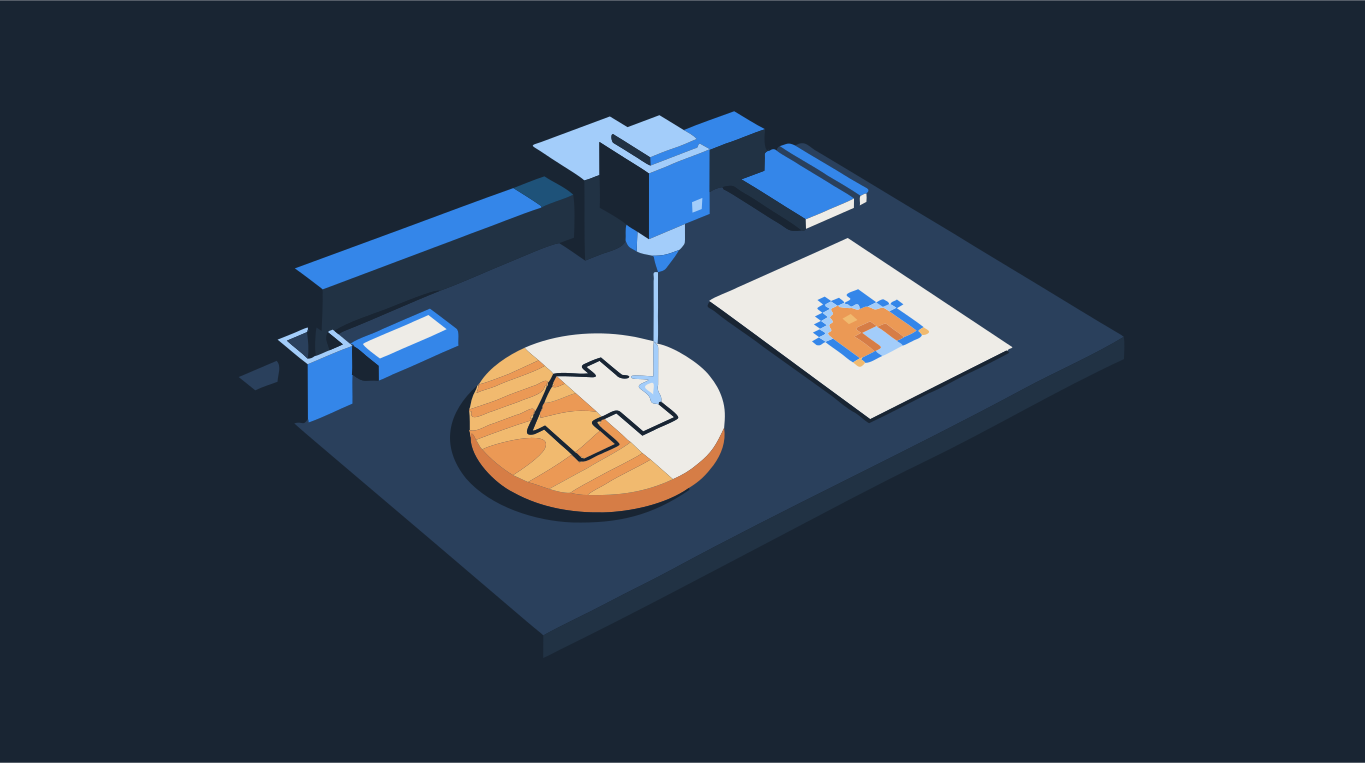
A laser cutter does not look at pixels. It follows lines: every edge you want cut or scored has to exist as a vector path, ideally a closed one. A PNG or JPG has no lines at all, so before it can be cut it has to be traced into shapes and saved as DXF (or SVG, which most laser software also reads).
The short version: reduce the picture to two tones, trace it into closed outlines, export as cut-outs rather than stacked shapes, and check the result in your laser software before you burn anything. Drop an image below to see what the outlines look like.
Try it on your image
Two-tone DXF, cut-outs with closed outlines — set for laser cutting
Step by step: PNG or JPG to DXF
- Pick a picture with clear contrast: a logo, a silhouette, line art or lettering. Photos with soft shading need to be simplified first, because every shade becomes another shape.
- Open it in the converter above. For laser work the colors are set to Two: one tone becomes the part, the other the background.
- Look at the trace in the Vector view. Small specks that would turn into tiny cuts can be removed by raising Min shape size under Shapes.
- Under Export, keep Cut-outs (already selected when you start from this page) so neighbouring shapes do not overlap. Overlapping (stacked) shapes make the laser cut the same edge twice.
- Download as DXF. If your laser software accepts SVG (LightBurn and xTool Creative Space both do), SVG works just as well and keeps the original size.
- Import the file, check the size and that every outline is closed, then run a test on scrap material.
DXF or SVG for laser cutting?
Both describe the same thing: shapes made of lines and curves. DXF comes from CAD and is accepted by almost every laser, CNC and plasma cutter. SVG comes from the web and design tools, and most hobby laser software reads it directly. Use whichever your software imports without complaining. Converting between them is where problems creep in: wrong scale, curves broken into thousands of tiny segments, or shapes shifted off the page. If you can, export straight to the format you need instead of converting later.
- DXF: universal for CAD, CNC and industrial lasers. Curves are saved as runs of short straight lines, which every program reads; DXF curves under Export sets how many (smoother or smaller file).
- SVG: keeps true curves and colors, great for LightBurn, xTool and Glowforge. Some CAD programs do not open it.
- Need both? Trace once and download each format from the same result.
Why outlines must be closed
A cut line that does not meet itself leaves the part attached to the sheet. An engrave fill inside an open outline has no inside to fill. A trace made of filled shapes is closed by construction: every shape has an outer edge that ends where it started. That is why tracing to filled shapes and exporting the outlines is more reliable than drawing over a picture by hand.
When the result is not what you expected
- Too many tiny shapes: raise Min shape size, or lower Complexity under Shapes.
- Jagged curves: move Smoothness toward Flatter curves, or start from a larger image.
- Double outlines in your laser software: the export was stacked instead of cut-outs, or the drawing was traced as lines. See why LightBurn Trace Image gives double lines.
- Wrong size after import: set the size in your laser software, or check the units it uses when importing DXF.
Want just the converter? Use PNG to DXF or the vector for laser page.