LightBurn Trace Image problems: double lines and messy edges
Why a line drawing comes back with two outlines, and how to avoid it.
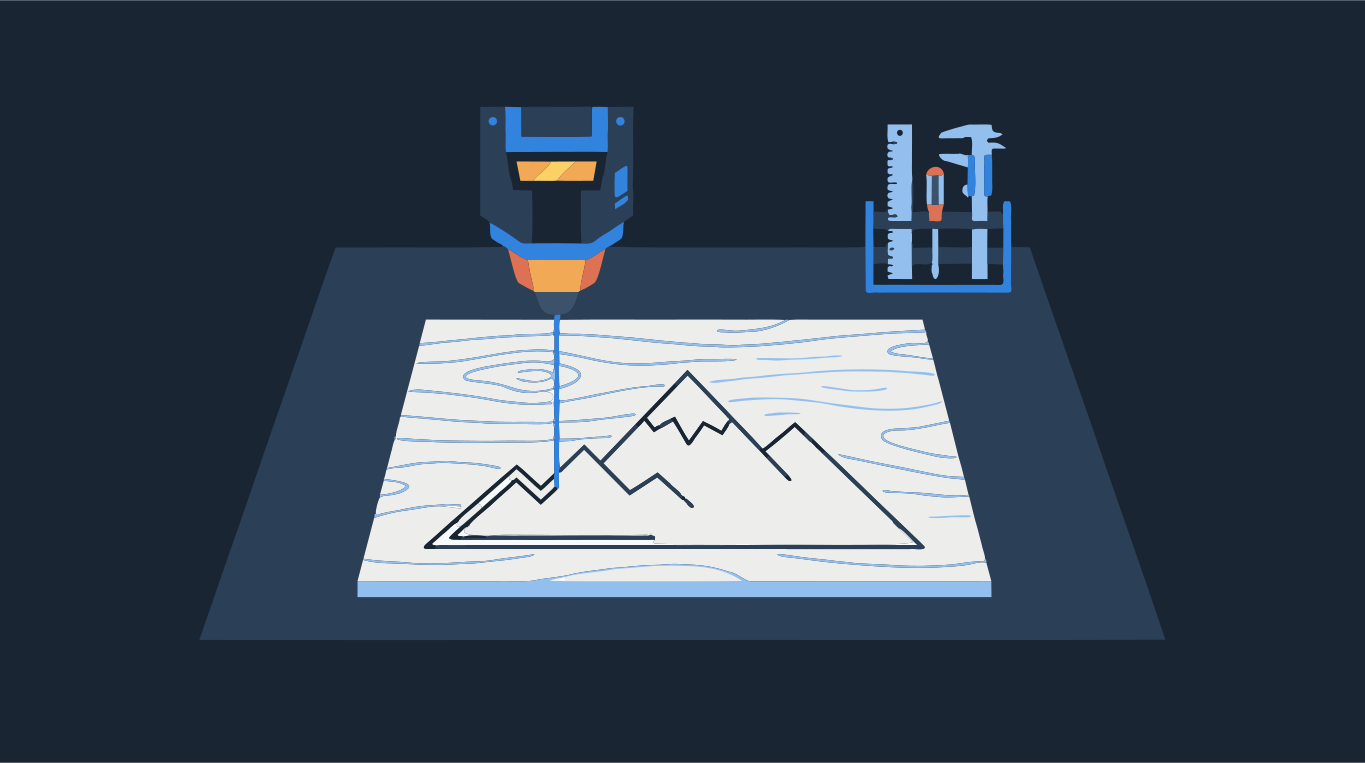
LightBurn's Trace Image draws a boundary around every dark area in the picture. A line in a drawing is a thin dark area, and it has two edges: one on each side. So each line comes back as two outlines, a thin closed loop around the ink. That is the double line. It is not a bug and Delete Duplicates will not remove it, because the two outlines are not on top of each other: they are a line-width apart.
What to do depends on what you want the laser to do. To engrave the drawing, keep the trace and put it on a Fill layer: the laser fills the space between the two outlines, which is exactly the line. To cut a shape out, trace a solid two-tone shape instead of an outline drawing. To score a single line along the middle of each stroke, you need a single-line trace, which a regular trace (including ours) does not do. Drop an image below to see the solid two-tone version.
Try it on your image
Two-tone SVG, cut-outs without double edges — for LightBurn
Pick the fix by job
- Engrave line art: trace in LightBurn, assign the result to a layer in Fill mode. The double outline becomes the edge of a filled stroke, and the burn looks like the original drawing.
- Cut a part or a sign: you want one closed outline around the solid shape. Fill the shape in your drawing (or start from a silhouette), trace it with two tones, and export as cut-outs so each edge is cut once.
- Score or cut along the middle of each line (one pass per stroke): this needs a single-line trace. LightBurn's 2.2 early-access builds list a single-line trace among their new features; Inkscape's Trace Bitmap also has a single-line mode. Shapesoda does not offer single-line tracing.
- Cut the line art as a thin strip of material: keep the double outline. Both edges really are cuts.
Why does a solid shape fix the cut case? Trace a filled silhouette and every edge exists once: the outer border of the part, plus one outline for each hole. With Cut-outs on export, shapes that touch are trimmed so they share an edge instead of overlapping, and the laser does not cut the same line twice. A line drawing has no inside, so a trace can only outline the ink, and the double edge comes back.
Trace Image settings that matter
Select the image and open Tools > Trace Image (or right-click it, or press Alt+T, Option+T on a Mac). The purple preview shows what will be traced.
- Cutoff and Threshold: the brightness range that gets outlined. The default 0 to 128 traces the darker half of the picture. Raise Cutoff to drop the darkest values; raise Threshold to include lighter greys.
- Ignore Less Than: skips areas smaller than this many pixels. Raise it to remove specks from noisy photos and scans.
- Smoothness: how much line segments are turned into curves, from 0 (only straight lines) to 1.33 (only curves).
- Optimize: reduces the number of nodes. The default is 0.2; very high values can pull the outline away from the image.
- Sketch Trace: finds edges by local contrast. It is meant for photos of pages with uneven lighting, like handwriting or a pencil sketch on a desk.
- Trace Transparency: traces the outline of the non-transparent part of a PNG instead of its brightness.
Why the edges are ragged
Trace Image follows pixels exactly as they are. Feed it a small, blurry or JPEG-compressed picture and it faithfully traces the blur and the compression blocks.
- Start from the largest, sharpest copy of the image you have. A screenshot of a thumbnail will never trace cleanly.
- If the picture has soft shading, decide which parts should burn and which should not. Trace works on one brightness range, so the gradients become stepped, ragged edges.
- In Trace Image, set Cutoff and Threshold so the preview covers the solid parts only. Turn on Fade Image to see the preview better.
- Raise Ignore Less Than until the specks disappear, then raise Smoothness a little for rounder curves.
- Turn on Show Points. If a simple curve has dozens of points, raise Optimize.
- Click OK, move the trace off the image, delete the image, and run a test on scrap.
When LightBurn's trace is all you need
For a high-contrast logo, a silhouette or bold lettering, Trace Image is quick and good enough, and you never leave LightBurn. Tune Cutoff, Threshold and Ignore Less Than and you are done.
It is worth tracing elsewhere when the source is small or compressed, when you need several separate color regions on different layers, or when the edges keep coming out jagged no matter what you set. In the converter above, colors are set to Two (for a photo, switch Image type from Photo to Blended so the two-tone setting applies), Min shape size removes specks, Smoothness controls how tight the curves follow the pixels, and the export uses Cut-outs so no two shapes overlap. Download an SVG or DXF and import it into LightBurn.

More on preparing files for the laser: how to make a DXF for laser cutting and which file format to use. Or open vector for laser directly.