Inkscape Trace Bitmap: best settings and when it fails
Brightness cutoff, multiple colors, smoothing: which knob does what.
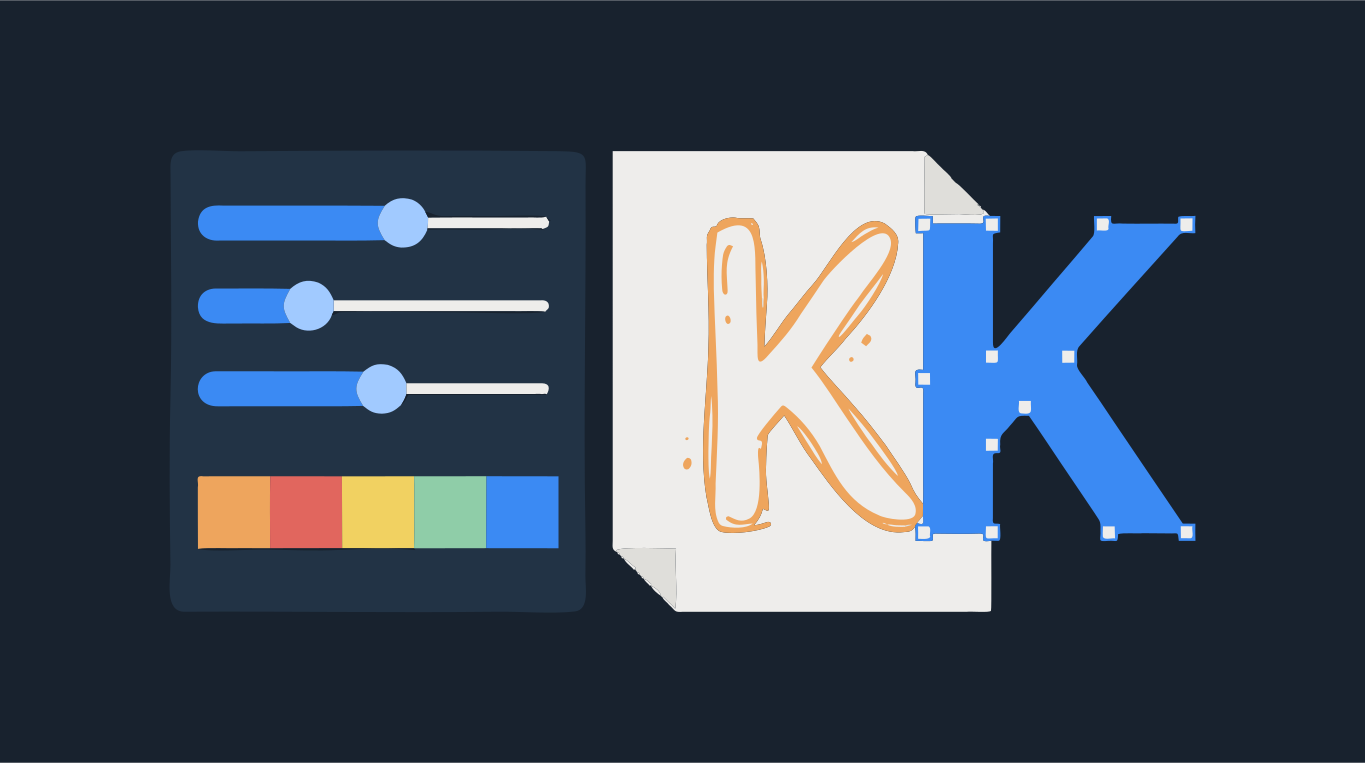
Trace Bitmap lives under Path > Trace Bitmap (Shift+Alt+B). For a one-color logo, lettering or line art, use Single scan with Brightness cutoff and move the threshold until thin lines are solid. For a color image, use Multiple scans with Colors, set the number of scans to the number of colors you actually want, and turn on Stack scans and Remove background.
If nothing seems to happen when you click Apply, the trace is usually there, sitting exactly on top of your original image. Drag it aside to see it. The rest of this guide explains each setting and the other reasons a trace fails. If you just need the vector, drop the image below and open the SVG in Inkscape.
Try it on your image
SVG you can open in Inkscape
How to use Trace Bitmap in Inkscape
- Import the image (File > Import) and click it once so it is the only thing selected.
- Open Path > Trace Bitmap. The dialog opens as a docked panel.
- Pick Single scan for one color, or Multiple scans for several colors or shades of grey.
- Choose the detection mode and set its value (see the settings below). Click Update to refresh the preview.
- Set Speckles, Smooth corners and Optimize at the bottom of the panel.
- Click Apply. The trace is placed exactly over the original. Drag it to one side, check it, then delete the original image.
Best settings for logos and line art
Use Single scan and Brightness cutoff. It turns everything darker than the threshold into one filled shape. The value runs from 0 to 1: raise it and more of the image becomes part of the shape, lower it and thin or light lines drop out. Around 0.45 is a fair start for black ink on white paper; scans with grey paper may need less. Click Update after each change and zoom in on the thinnest line before you apply.
- Thin lines break up: raise the threshold a little.
- Paper texture shows up as dots: lower the threshold, or raise Speckles.
- The image is light art on a dark background: tick Invert image so the light parts become the shape.
Best settings for color images
Use Multiple scans with Colors. Each scan becomes a separate path filled with one color, grouped together. The number of scans is the number of colors, so a three-color logo wants 3 or 4, not the default 8. Grays does the same with shades of grey, and Brightness steps slices the picture into bands of brightness. For a logo, Colors is almost always the one you want.
- Stack scans: places the color layers on top of each other instead of side by side. Turn it on, otherwise thin gaps can appear between colors.
- Remove background: drops the lightest layer, usually the white background, so you keep only the artwork.
- Smooth: blurs the image slightly before tracing. It helps with photos and JPEG noise but rounds off small details in logos.
What Speckles, Smooth corners and Optimize do
- Speckles: removes shapes smaller than the given size in pixels. Raise it to drop dust, noise and JPEG artifacts.
- Smooth corners: rounds sharp corners. Lower it, or untick it, for logos with crisp corners and angular lettering.
- Optimize: joins curve segments to reduce the number of nodes. Higher values give lighter paths but can drift from the original shape.
Why Trace Bitmap does nothing (or gives the wrong result)
- The trace is hiding on top of the original. Drag it aside or hide the image layer.
- The selection is not a bitmap. A pasted SVG, a group or a clipped image will not trace. Select the image itself, or ungroup first.
- You saw the preview but did not click Apply. The preview is only a preview.
- A PNG with a transparent background traces into nothing or a solid block. Try Multiple scans with Colors, at least 2 scans and Remove background, or flatten the image onto white first.
- The image is huge. Multiple scans on a large photo can take a long time or freeze Inkscape. Scale it down to a sensible size before tracing.
- In Autotrace mode the preview may stay empty, and the Speckles and Smooth corners settings have little effect. Click Apply to see the real result.
When Inkscape is enough, and when to try something else
For clean black and white art, Brightness cutoff gives smooth, accurate shapes and costs nothing. Many people never need more. The dialog also has a separate mode for pixel art, which keeps square pixels square.
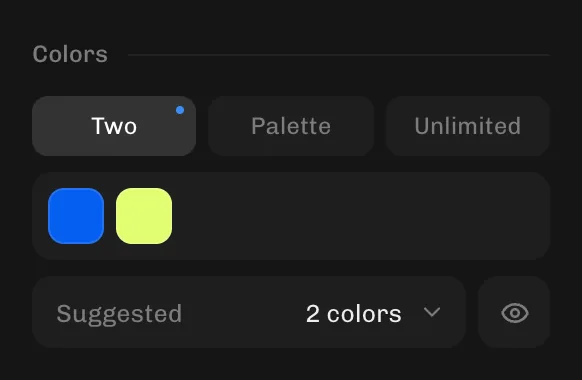
It gets harder with colored logos from low-resolution or compressed sources. Multiple scans picks its own colors, so one flat blue can split into several shades, edges between colors get ragged, and you spend time merging and deleting paths by hand. In the converter above you choose the colors directly: Palette with the exact number of colors (set Image type to Blended if the picture was detected as a Photo, since a photo ignores the color count), and Smoothness and Nodes for how tight the curves follow the pixels. The SVG opens in Inkscape with one path per color.
Coming from Illustrator? See Image Trace not working. Paths too heavy to edit? Read why your SVG has too many nodes. Or go straight to PNG to SVG.