Why your SVG has too many nodes, and how to fix it
Fewer nodes mean smoother curves, smaller files and cleaner cuts.
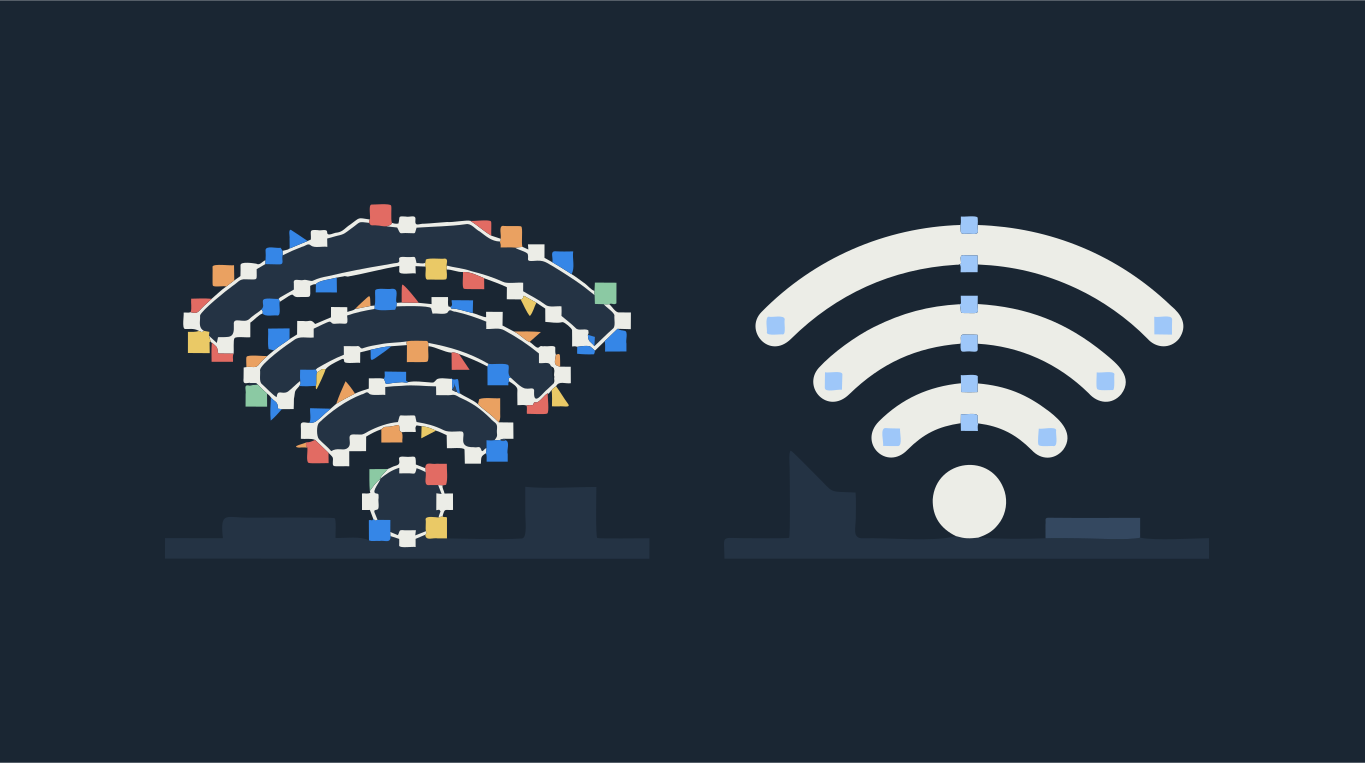
An SVG has too many nodes when the tracer follows every pixel step along an edge instead of drawing one smooth curve. A circle that needs four or eight nodes ends up with sixty. The file gets heavy, editing becomes a chore, and cutters and lasers slow down and stutter on the tiny segments.
The fix is to trace again with settings that favour smooth curves: fewer nodes, flatter curves, fewer colors and no specks. Simplifying an existing SVG afterwards also works, but it tends to round off corners and shift edges. Drop an image below and turn on Show paths & nodes to see how many nodes the trace uses.
Try it on your image
Smooth SVG with few nodes
What a node is, and why the count matters
A path in an SVG is a chain of segments: straight lines and curves. Each point where one segment ends and the next begins is a node (some apps call it an anchor point). A good trace puts nodes only where the shape changes direction and lets curves do the rest.
- Editing: every node is something you might have to drag. A logo with a few hundred nodes is easy to adjust; one with thousands is not.
- Cutting and engraving: machines move node to node. Hundreds of tiny segments make the blade or laser head jerk, leave a rough edge and take longer.
- File size: more nodes, bigger file. That matters for web icons and for marketplaces with upload limits.
- Look: a curve broken into many short pieces often shows small wobbles you can see when the design is enlarged.
Why auto-traced SVGs end up with so many nodes
- Small or low-resolution source: at a small size, a curved edge is a staircase of pixels, and the tracer follows the steps.
- JPG compression and noise: blotchy edges and speckled areas become dozens of tiny shapes, each with its own nodes.
- Too many colors: gradients and anti-aliased edges split into thin bands, and every band is another outline.
- Settings that favour accuracy: tracing that hugs every pixel keeps every pixel step as a node.
Step by step: get a smooth trace with fewer nodes
- Start from the largest, cleanest image you have. A crisp PNG traces with fewer nodes than a small, compressed JPG.
- Open it in the converter above and turn on Show paths & nodes to see the nodes on the result.
- Under Colors, set only as many colors as the design really has with Palette. Shades left over from compression then fold into the nearest color instead of becoming extra shapes.
- Under Shapes, raise Min shape size to drop specks, and move Complexity toward Fewer shapes if small details aren't needed.
- Under Paths, move Nodes toward Fewer nodes and Smoothness toward Flatter curves. Keep Sharp corners on for logos and lettering so points stay crisp.
- Compare with the original in Compare view, then Download as SVG.

Simplify an existing SVG in Inkscape or Illustrator
If you only have the SVG and not the original image, both main editors can reduce nodes on paths you select. In Inkscape it is Path → Simplify. In Illustrator it is Object → Path → Simplify, which has a slider for how far to go.
Simplify works on the curves you already have, so it can't tell a real corner from a pixel step. It tends to round corners, shrink thin parts and leave the specks in place. Use it gently, a little at a time. If the source image is still around, retracing with smoother settings usually gives a cleaner result than simplifying a noisy trace.
How many nodes is normal?
It depends on the design, so there is no fixed number. As a reference, on our benchmark of 30 logos, flags, emoji, icons and line art, Shapesoda's default settings produced a median of 96 nodes per image (174 on average). The other tools we tested had medians from 156 to 406 nodes for the same images. A simple icon should need dozens of nodes, not thousands; if a two-color logo comes back with several thousand, the trace is following pixels.
Fewer nodes for cutting machines and lasers
For a Cricut, Silhouette or laser, node count shows up in the finished piece. A blade dragged through hundreds of tiny segments can tear thin vinyl at each turn, and a laser that keeps slowing down and speeding up can leave darker spots where it slows. Before you send a file to the machine, open it with Show paths & nodes and look at the curves you will cut. Long, even curves with nodes spaced out along them are what you want. Clusters of nodes on a gentle curve are a sign to retrace with fewer nodes. DXF is a special case: curves are saved as chains of short straight lines. The DXF curves option sets how many: Fewer lines (small) for a lighter file, Many lines (smooth) when curves must look perfectly round.
Other signs of a noisy trace
- Hundreds of tiny shapes in what should be one flat area: use fewer colors in Palette or raise Min shape size.
- Thin slivers between colors: switch shapes to Stacked (no seams) for print and the web.
- Double lines in laser software: see LightBurn Trace Image problems.
- Rough results from Illustrator or Inkscape tracing: see Image Trace not working and Inkscape Trace Bitmap settings.
Want just the converter? Use Image to SVG, Raster to vector or Icon to SVG.