Illustrator Image Trace not working? Fixes and alternatives
Greyed-out button, a white result, or a blob of shapes: what each one means.
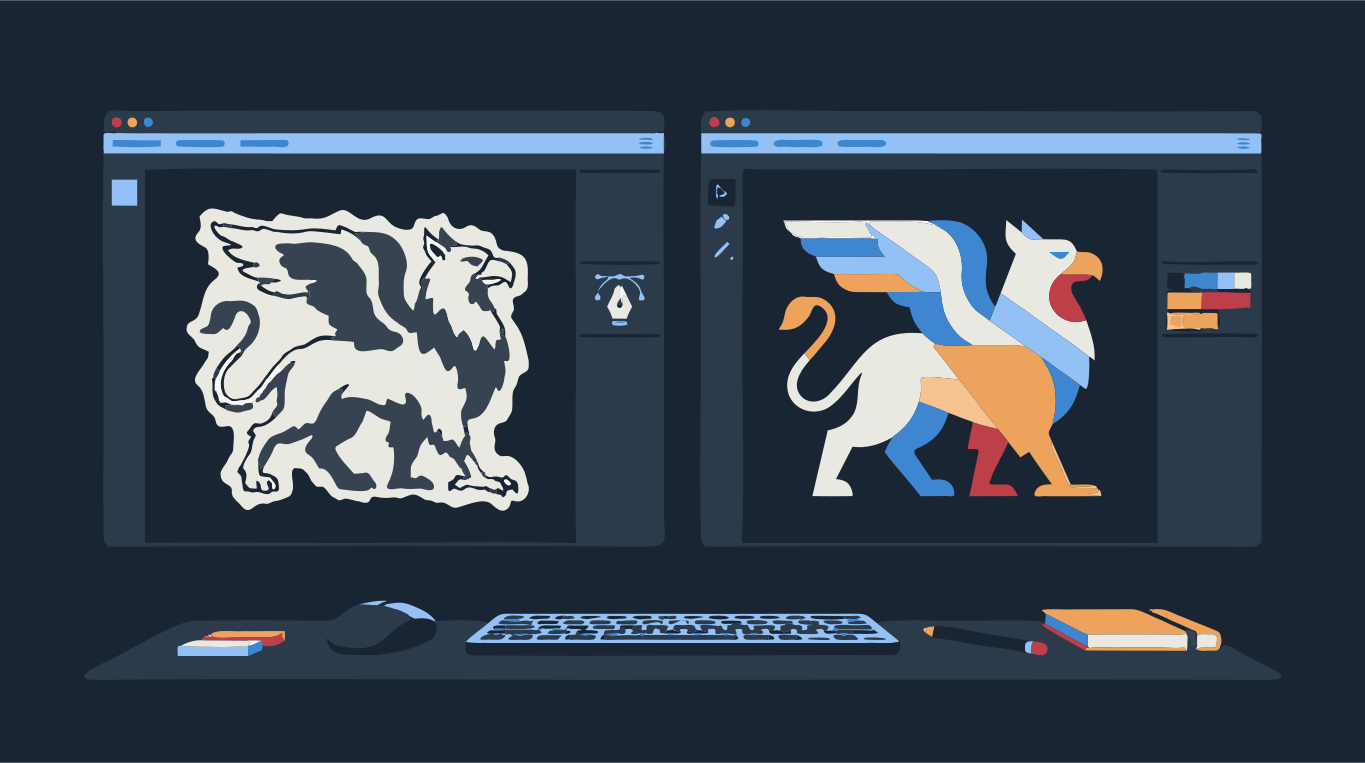
When Image Trace in Illustrator misbehaves, it is almost always one of three things. The button is greyed out because what you selected is not a plain raster image. The result turns white or disappears because Illustrator treats white as empty. Or the trace works but gives a blob of rough shapes because the preset does not suit the picture.
Each has a quick fix, listed below. If you have tried them and the shapes still look wrong, or you do not have Illustrator at all, drop the image below. You get a clean vector you can download as SVG, AI, EPS or PDF and open in Illustrator.
Try it on your image
Clean SVG you can open in Illustrator
Why is Image Trace greyed out?
Image Trace only works on raster images: placed PNG, JPG, TIFF or PSD pixels. If the selection is anything else, the command stays grey. Check these in order:
- Nothing is selected, or more than the image is selected. Click the image alone with the Selection tool. If the panels describe the selection as a group, a path or a clipping group, the image is wrapped in something else.
- The image sits inside a clipping mask or a group. Pasted images often arrive masked. Release the mask (Object > Clipping Mask > Release) or double-click into the group and select the image itself.
- The artwork is already vector. A placed PDF, AI or SVG, live text, or a drawn shape has nothing to trace. If you really want to trace it, rasterize it first with Object > Rasterize.
- A shape with an effect applied looks like pixels but is still a vector object. Rasterize it first.
- The Image Trace panel options are grey even though the image is selected. That is normal before the first trace: click Trace once, then the settings come alive and update the result.
Why does Image Trace turn my image white or make it disappear?
Illustrator ignores white during tracing when Ignore White is on, and some presets turn it on. A white logo on a transparent background then has nothing left to trace, so you get an empty result or a white box you cannot see on a white artboard.
- White artwork: invert the image to black (in an image editor, or with Edit > Edit Colors > Invert Colors on an embedded image), trace it, then fill the result with white.
- In Black and White mode, a Threshold that is too low turns almost everything white. Raise it until the dark parts come back.
- The picture vanished after Make and Expand: undo, run the trace first, check it, and only then expand. Make and Expand gives you no chance to adjust settings.
- Switch the trace view to Tracing Result with Outlines to see whether shapes exist but are filled white.
How to get a cleaner trace in Illustrator
- Place the image (File > Place) and select it on its own.
- Open Window > Image Trace. For a one-color logo or lettering, set Mode to Black and White. For a colored logo, choose Color and lower the number of colors to what the logo really has.
- In Black and White mode, move Threshold until thin lines are solid and the background is clean.
- Open Advanced. Lower Paths for looser, smoother curves; raise Corners if sharp corners come out rounded; raise Noise to drop small specks.
- Turn on Ignore White if you only want the dark shapes, for example for a stamp or a cut file.
- Click Trace, zoom in on curves and corners, and adjust. When you are happy, click Expand (or Object > Image Trace > Expand) to turn the trace into editable paths.
Image Trace is slow or seems to hang? It works on every pixel, so a 6000 px photo takes far longer than a 1500 px logo, and the High Fidelity Photo preset produces thousands of paths that make Illustrator crawl. For logos and line art, scale the image down to a sensible size before tracing and use a preset with fewer colors.
When Image Trace is good enough
For a high-contrast black and white logo, a silhouette or clean line art, Image Trace with the Black and White preset and a little tuning gives perfectly usable shapes. If you already pay for Illustrator and the result looks right at 400% zoom, keep it.
It struggles more with colored logos on low-resolution or JPEG-compressed sources. Typical signs: wobbly curves where the original was a clean arc, dozens of slightly different shades for one flat color, thin slivers between color areas, and far more anchor points than the shape needs. Each fix there means more manual cleanup after Expand.
Alternatives to Image Trace
- No Illustrator: Inkscape is free and has Path > Trace Bitmap. See Inkscape Trace Bitmap settings.
- Messy colors: in the converter above, set Colors to Palette and pick the exact number of colors in the logo, so near-identical shades end up as one flat color. If the logo was detected as a photo, set Image type to Blended first, otherwise the color count is not applied.
- Wobbly curves or too many points: move Smoothness toward Flatter curves and Nodes toward Fewer nodes. More on this in why your SVG has too many nodes.
- Need it in Illustrator anyway: download as AI or SVG and open it there. Each color comes in as its own shape you can recolor.
Starting from a logo? The logo to vector page is set up for it. For scans and sketches, use drawing to vector.