How to turn a photo into an SVG for Cricut
From a phone photo to a layered cut file Design Space opens cleanly, in a few minutes.
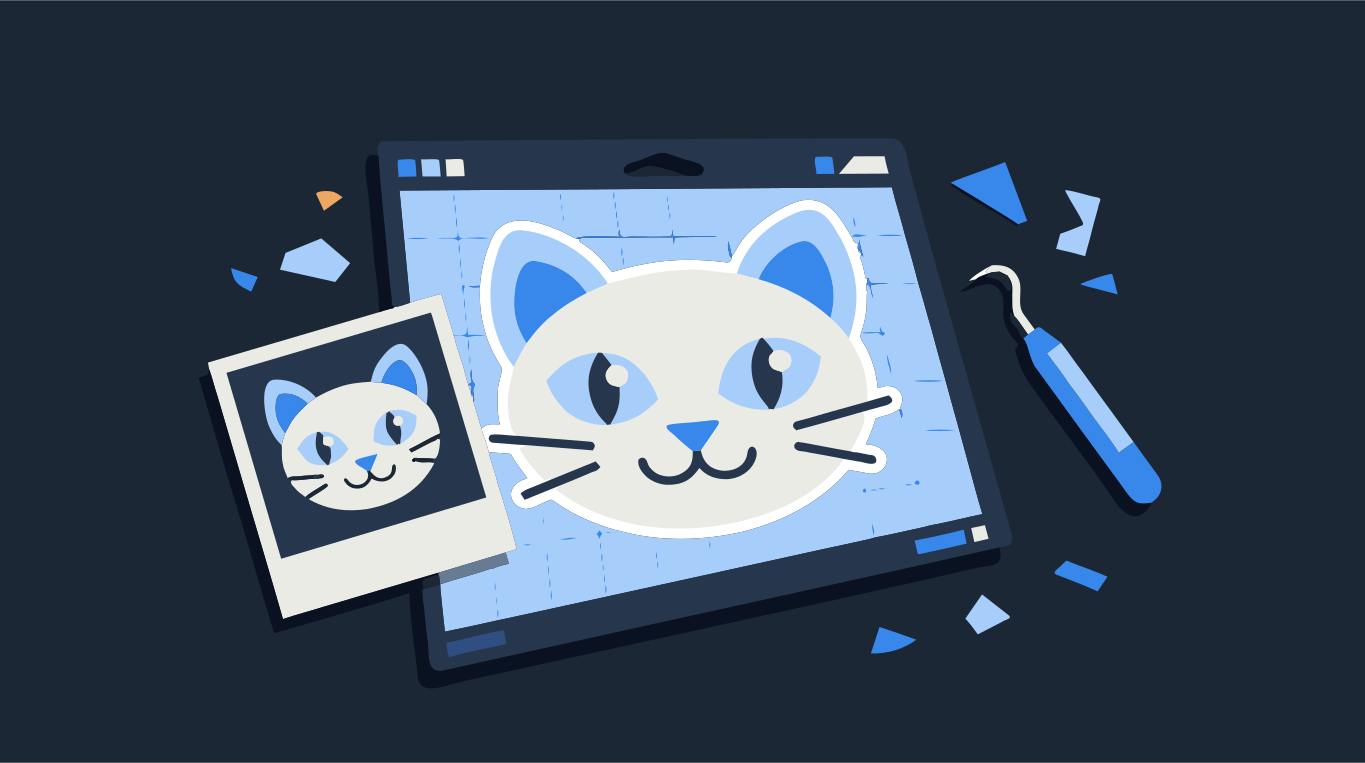
A Cricut cuts flat shapes out of flat material. A photo is the opposite: thousands of shades blending into each other, with no edges a blade can follow. To turn a photo into a cut file, you trace it into a small number of solid colors, one per material, and save the result as an SVG. Design Space reads each color in that SVG as its own layer.
The short version: crop the photo to the subject, trace it with 2 to 4 colors, remove the background shapes, download an SVG and upload it to Design Space. Drop a photo below to see how it looks with a handful of flat colors.
Try it on your image
SVG with color layers — set for Cricut Design Space
Step by step: photo to Cricut SVG
- Crop the photo to the subject before you upload it. A tight crop gives the tracer more pixels to work with on the part you actually want to cut.
- Drop the photo into the converter above. A photo is detected as Photo under Image, which keeps every shade it finds. Switch Image to Blended: that turns on the color choices below.
- Under Colors, choose Palette and pick the number of colors you want to cut: 2 for a one-color decal, 3 or 4 for a layered vinyl design. Or choose Two for a simple two-tone silhouette. Every color is one more layer to cut and weed.
- Look at the result in the Vector view, or use Compare to check it against the Original. If faces or fur break into too many small pieces, raise Min shape size or move Complexity toward Fewer shapes.
- Delete the background. Use the erase tool to remove the shapes around the subject, so you are not cutting a full rectangle of vinyl you will throw away.
- Pick how the layers fit. Stacked (no seams) lets lower colors run under the ones above, which forgives small alignment errors when you layer vinyl. Cut-outs, grouped by color fits the pieces side by side with no overlap and keeps each color together.
- Download as SVG. Downloading needs a free account, and your first vector file is free.
- In Design Space, upload the SVG, insert it on the canvas and set the size. Each color shows up as its own layer, ready to assign to a material.

Which photos work, and which do not
Tracing keeps outlines and big areas of color. It drops texture and soft gradients. So the photos that work best already read well as a few flat shapes:
- Pets and people photographed against a plain background, with good light from one side.
- Silhouettes, buildings, cars and objects with clear outlines.
- Photos with strong contrast. A flat, grey, overcast picture gives a muddy trace.
- Big enough files. A photo straight from your phone is fine. A thumbnail saved from social media is not: the tracer cannot invent detail that is not there.
Busy backgrounds, motion blur and very small faces in a group shot are the usual reasons a trace looks wrong. If the face of a pet or a person is the point, crop close and use a photo where the eyes are sharp.
How many colors should a Cricut SVG have?
As few as still look like the subject. For a cut file, every color is a separate pass on the machine, a separate sheet of vinyl and more weeding. Most layered vinyl designs use 2 to 5 colors. A photo traced with the Photo image type or Unlimited colors looks closer to the original on screen, but it can produce hundreds of layers that no one would ever cut.
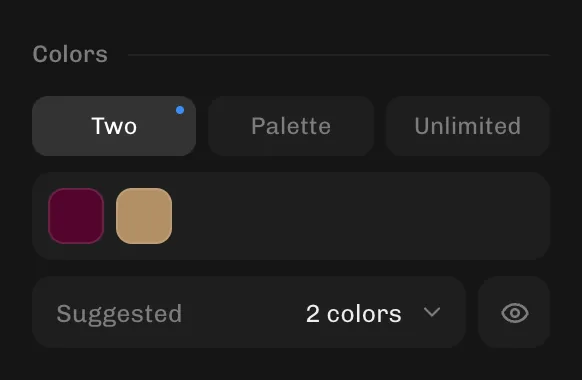
- 2 colors: a silhouette or a high-contrast portrait, cut from one sheet and applied on a light surface. This works best when the subject stands out clearly from a plain background.
- 3 to 4 colors: a recognisable pet or portrait in layered vinyl or cardstock.
- If two shades of the same color come out as separate layers, lower the number of colors, or click a color in the palette and pick a different one from the image.
Why not just upload the photo to Design Space?
You can. Design Space accepts JPG and PNG and lets you remove the background before you save the image as a cut image. But a cut image from a photo keeps only the outer outline as the cut line, so you get one silhouette instead of color layers. The other option, Print Then Cut, prints the photo on your home printer and cuts around it, which needs a printable material instead of vinyl. If you want layered vinyl or cardstock in separate colors, you need an SVG with those colors as separate shapes.
Getting the SVG into Design Space
Use the Upload button in Design Space and choose the SVG. Vector files upload as they were made, so there is no image type to pick and no background to erase. After inserting the design, check the size on the canvas and set the width you actually want to cut. Then check the layer list and make sure each color has the material you plan to use.
If the upload goes wrong (all black, blurry, or not supported), see Cricut upload problems and how to fix them. Want just the converter? Use the SVG for Cricut page.