Cricut upload problems and how to fix them
Blurry edges, a solid black shape, or a file Design Space refuses: what each one means.
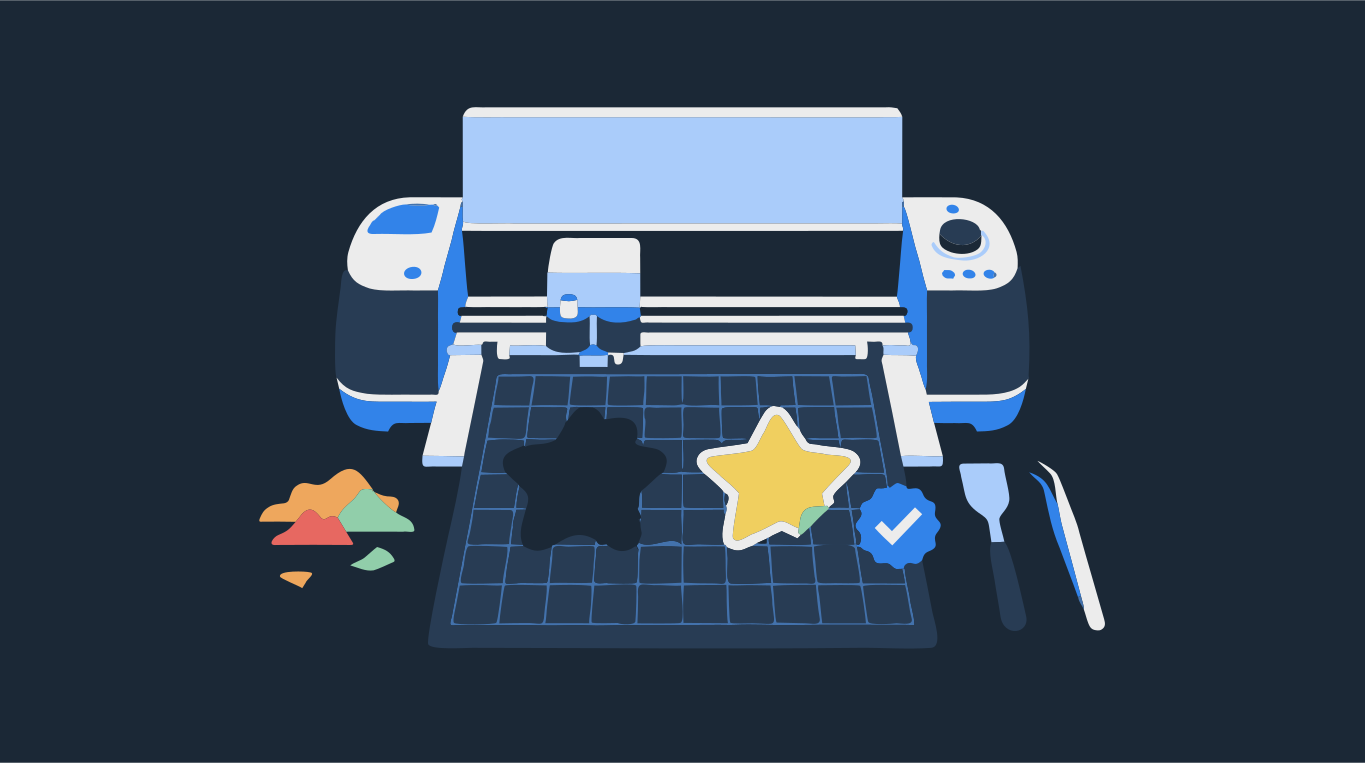
Most Cricut upload problems come down to what is inside the file. A blurry or jagged result means Design Space was given a small picture (PNG or JPG) and had to find cut lines in its pixels. A design that turns solid black is usually an SVG made of outlines with no fill. A "not supported" message or a blank upload usually means the SVG contains a picture instead of shapes, which is common with SVGs exported from Canva.
The fix is the same in most cases: give Design Space an SVG made only of filled shapes, one color per layer, with no pictures inside. Drop your image below to turn it into exactly that kind of file.
Try it on your image
Design Space–friendly SVG: plain shapes, no embedded image
Why is my image blurry or jagged after uploading to Cricut?
JPG, PNG, GIF and BMP files are raster images. Design Space treats them as basic images: you pick an image type, erase the background, and it finds the cut line along the edge of what is left. If the picture is small, that edge is a staircase of pixels, and the cut follows it. Making the design bigger on the canvas only makes the steps bigger.
- Start from the largest version of the picture you have. Screenshots and images saved from social media are usually far too small.
- For Print Then Cut, the printed picture can only be as sharp as the file. A small file prints soft no matter what you do in Design Space.
- For a pure cut, trace the picture into an SVG first. A vector file has smooth curves at any size, so the blade follows a curve instead of pixel steps.
Simple, moderately complex or complex: which image type?
When you upload a JPG or PNG, Design Space asks you to choose an image type: simple, moderately complex or complex. This tells it how to treat the colors when you remove the background. Simple suits a high-contrast picture on a plain background, like a black logo on white. Complex suits photos and images with shading or gradients. If the background tools pick up the wrong areas, go back and try a different type.
This step only applies to raster images. SVG and DXF files upload as they were designed, already split into layers, so there is nothing to choose. That is one more reason to upload an SVG when you want a clean multi-color cut.
Why does my SVG turn all black in Design Space?
This is the most common SVG problem. The file is made of outlines (strokes) with no fill: line art, an outline font, or shapes drawn with a pen tool and never filled. Design Space does not cut along strokes the way a design app draws them. It treats each closed path as a solid shape, and when that shape has no fill it shows it in the outline color. Black outlines become solid black shapes, and every detail inside them disappears black on black.
- If you made the file yourself, give every shape a fill color in your design app, or convert the strokes to paths (in Inkscape this is Stroke to Path), then export again.
- If the black shape is a background you did not want, delete that layer in Design Space and check whether the design underneath is intact.
- If the file came from someone else, or the drawing is too detailed to fix by hand, trace the PNG version of it into filled shapes instead. A traced file is made of filled shapes by construction, so there are no unfilled outlines to turn black.

"SVG not supported": pictures inside the file
An SVG can hold two very different things: vector shapes, and pictures (raster images) placed inside it. Design Space can cut shapes. It cannot cut a picture, because a picture has no paths. If the picture is linked to a file on the designer's computer instead of saved inside the SVG, Design Space reports that the SVG contains items that are not supported, naming non embedded image elements. If the picture is saved inside, the upload may come through blank, as a plain box, or without the part you expected to cut.
Saving a PNG as SVG, or dropping a photo into a design app and exporting SVG, does not turn the picture into shapes. It wraps the pixels in an SVG file. To cut it, the picture has to be traced into paths. Gradients and pattern fills cause similar trouble, because a cut layer can only be one solid color.
Why won't my Canva SVG work in Cricut?
Canva exports SVG, but anything in your Canva design that is a photo, an uploaded image or a raster graphic goes into the SVG as a picture, not as shapes. Text and simple shapes come out as vectors, so part of the design works and the rest does not. That is why a Canva SVG often loads with pieces missing, as a box, or as a file Design Space refuses.
- In Canva, download the design as PNG instead of SVG, at the largest size Canva offers. Turn on a transparent background if you have that option.
- Drop the PNG into the converter above. Choose Palette with the number of colors you plan to cut, or Two for a single-color decal. If the image is detected as Photo, switch Image to Blended first so the color count applies.
- Check the Vector view. Raise Min shape size if tiny specks show up, and use the erase tool to remove anything you do not want cut.
- Download as SVG. The file contains only filled shapes, no pictures and no outlines without fill.
- In Design Space, upload the SVG, insert it and set the size. Each color comes in as its own layer.
Other reasons a file will not upload
- It is still zipped. Design Space does not open zip files. Unzip the download and upload the SVG inside it.
- It is a PDF or EPS. Design Space accepts JPG, PNG, GIF and BMP pictures plus SVG and DXF vector files. Save or download the design as SVG instead.
- It is a DXF on a phone or tablet. Cricut's help center says DXF upload is not supported in the iOS and Android apps. Use the SVG version there.
- The SVG is huge. A file traced with thousands of tiny shapes is slow to upload and slow to cut. See why your SVG has too many nodes.
Not sure which format to ask for? See SVG vs PNG vs EPS vs PDF vs DXF. Starting from a photo? See how to turn a photo into an SVG for Cricut, or go straight to the SVG for Cricut converter.